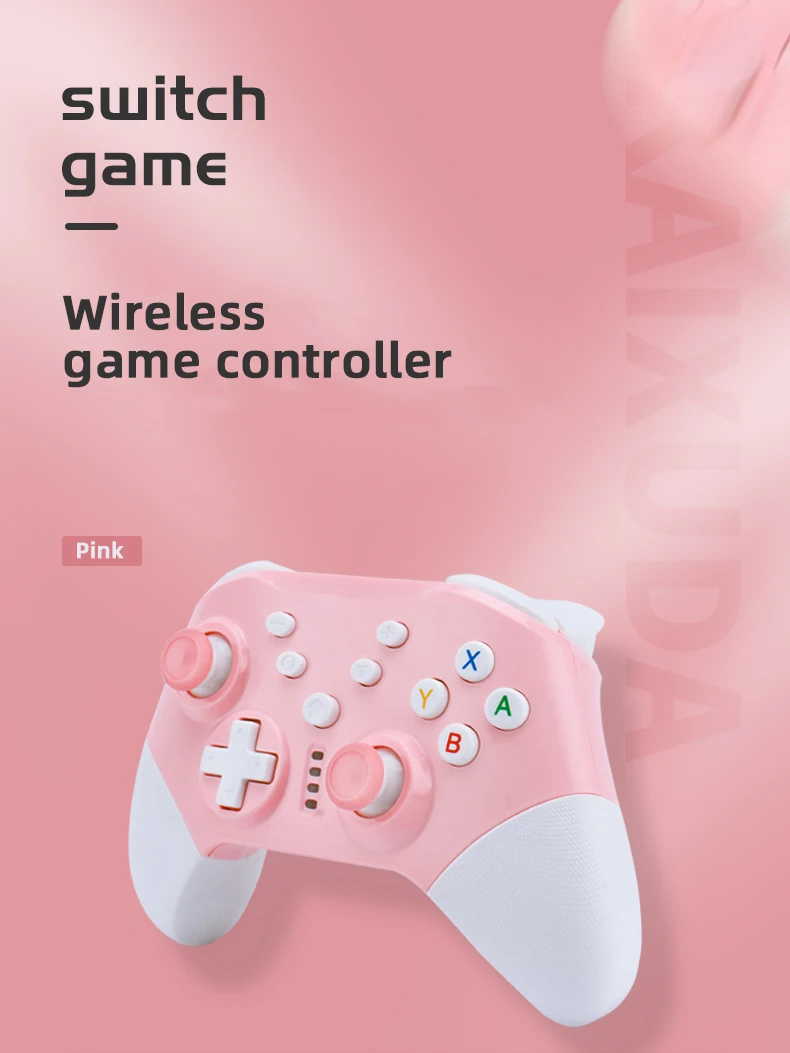
Switch Pro gamepad supports switch console with dual motor vibration, pink game controller supports PC win10


Switch Pro gamepad supports switch console with dual motor vibration, pink game controller supports PC win10
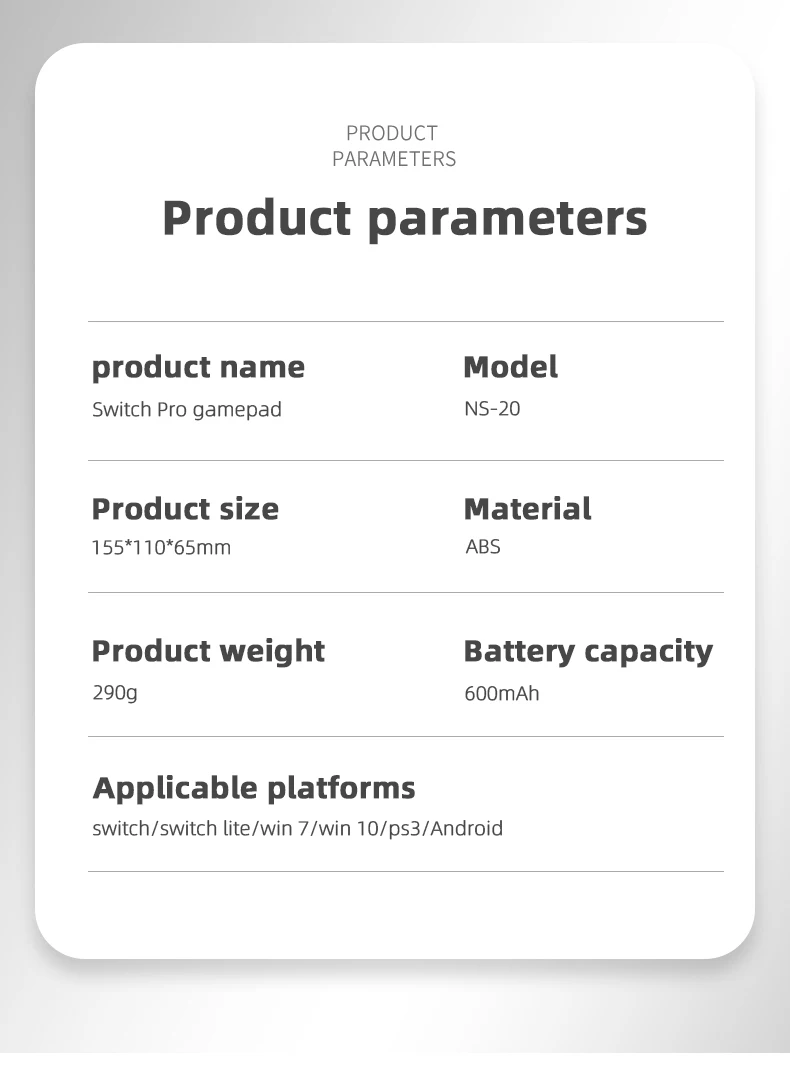
SPECIFICATIONS
Brand Name: IPLAY
Certification: None
Choice: yes
Compatible Brand/Model: Nintendo
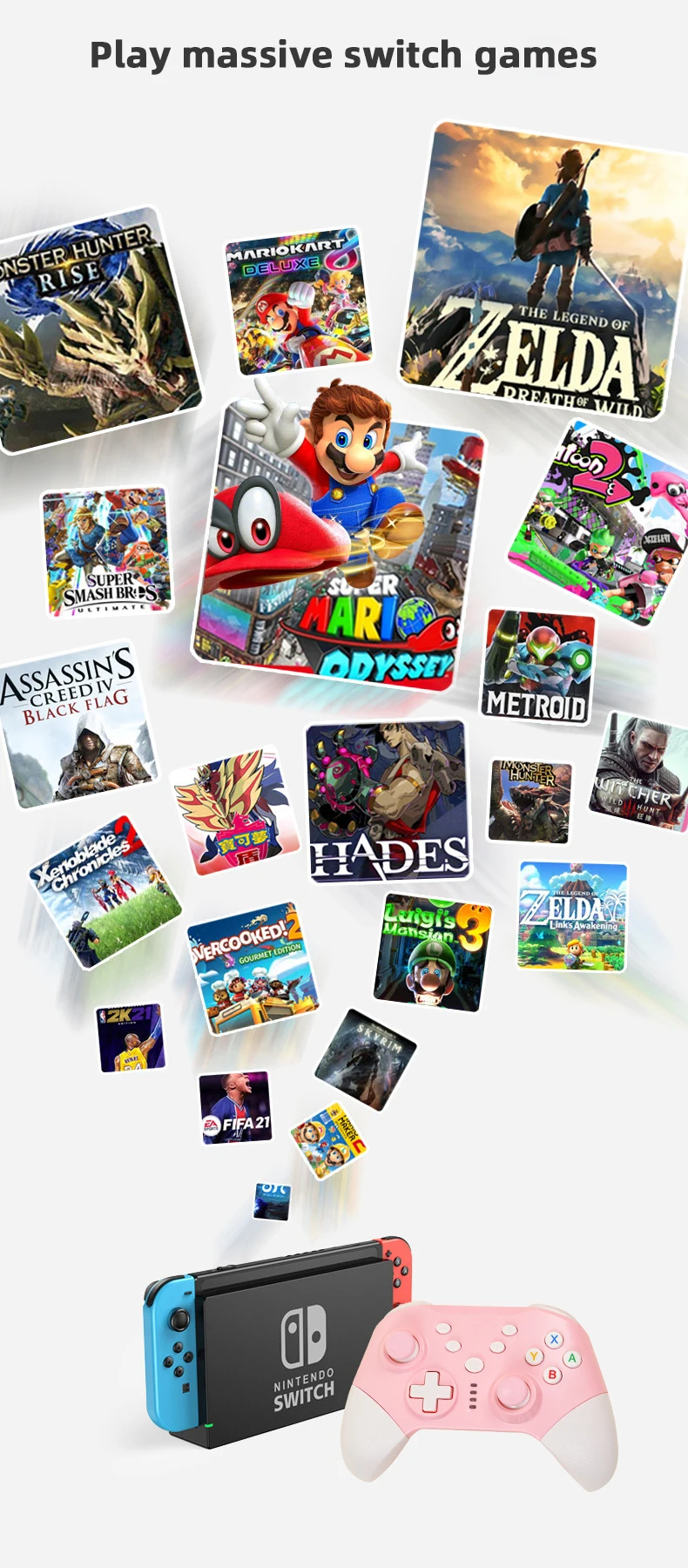
Compatible Nintendo Model: Nintendo Switch,Nintendo Switch OLED,Nintendo Switch Lite
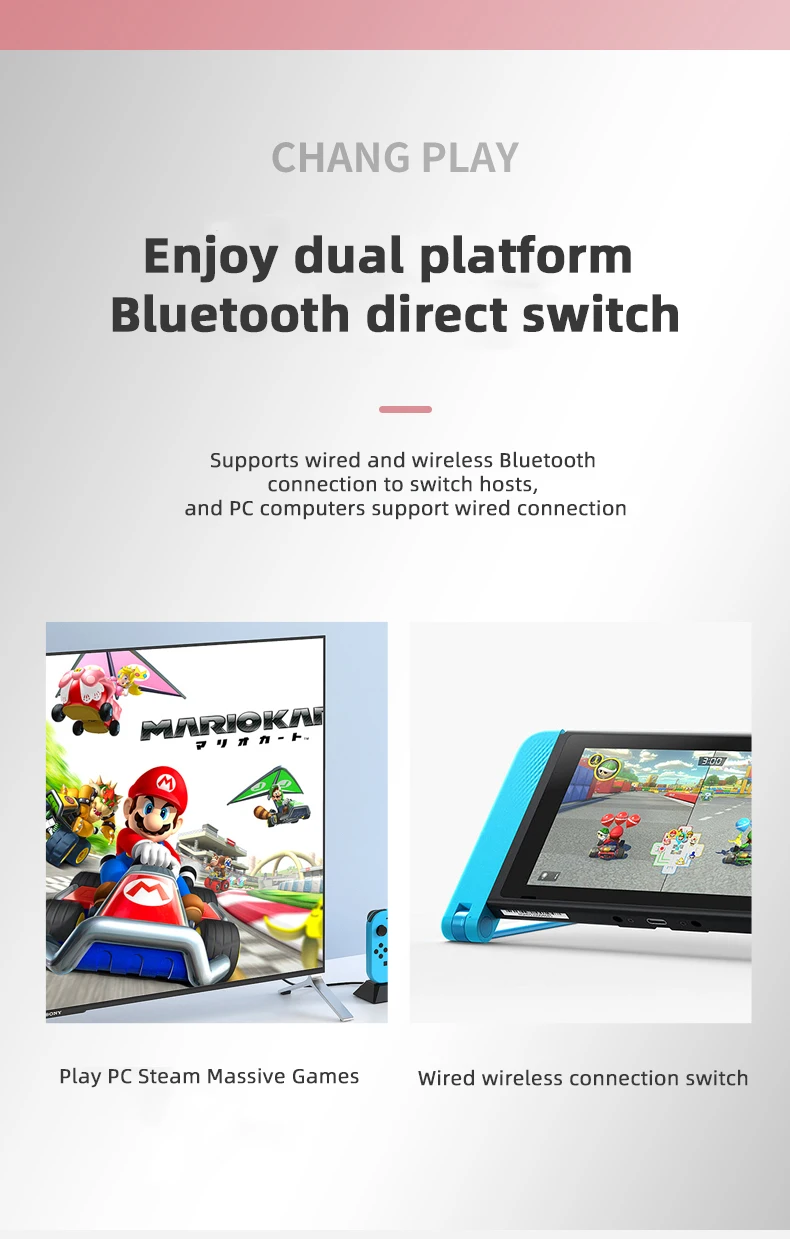
Compatible Platform: Nintendo Switch,PC,Android,steam
Hall Effect: No
Interface Type: USB,Bluetooth,2.4G
Joystick Sensor Module Brand/Type: K-SLIVER
Model Number: NS20
Origin: Mainland China
Package: Yes
Trigger Button Type: Non-Linear
Type: Gamepads
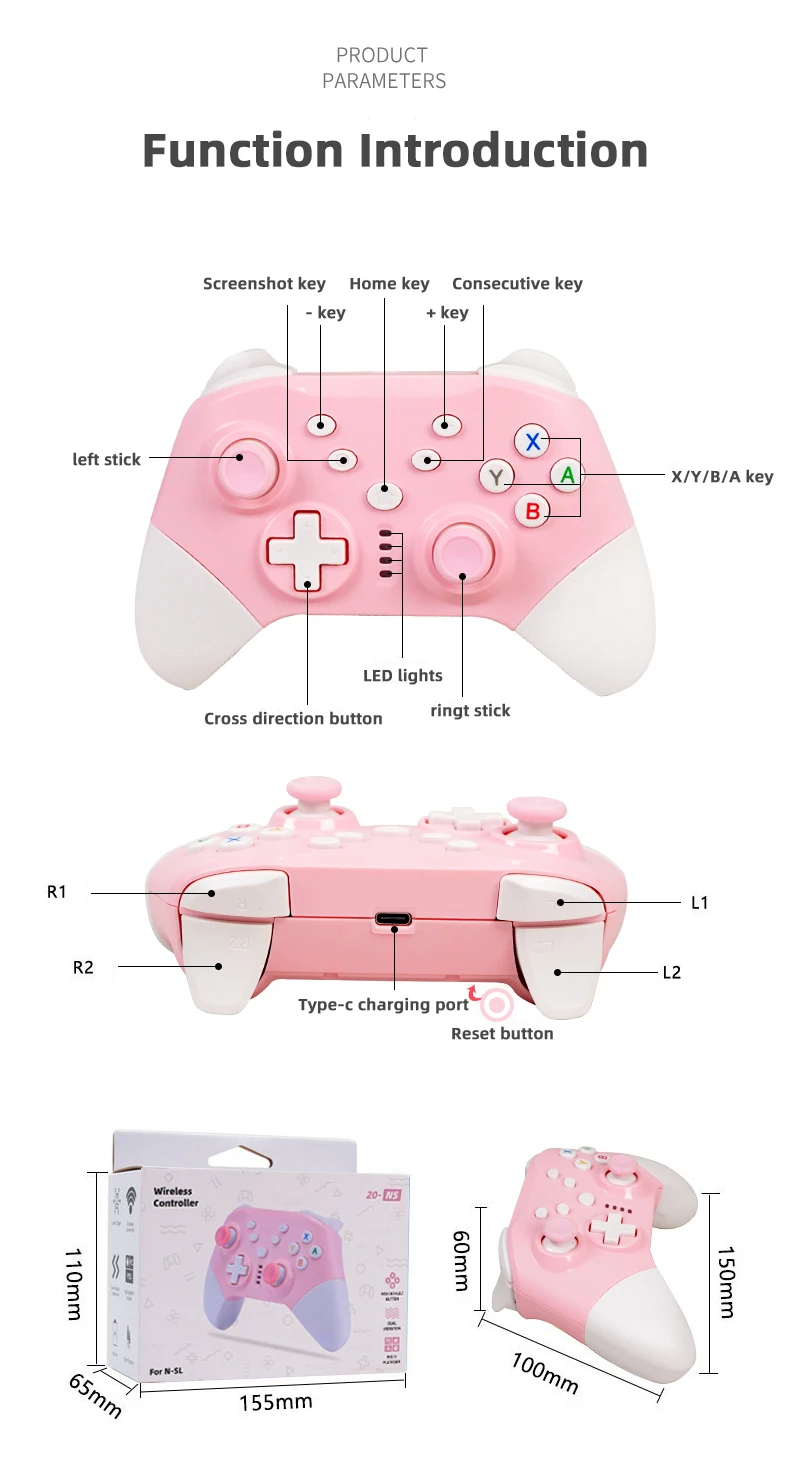
Game controller - suitable for switch consoles/PC computers/PS3 consoles/Android phones
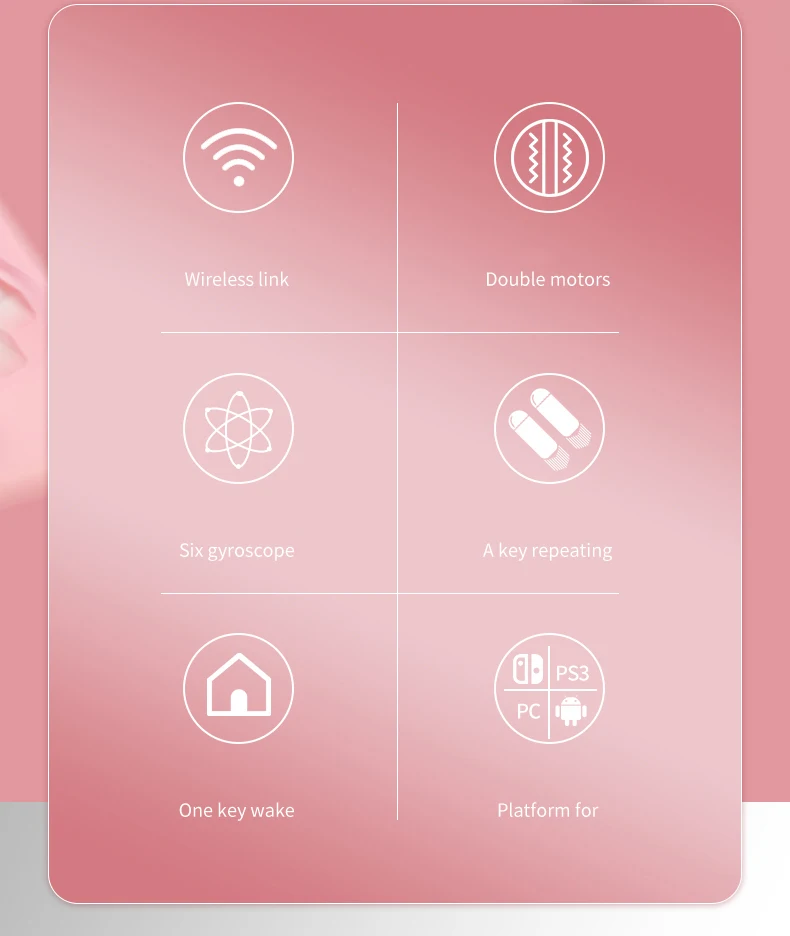
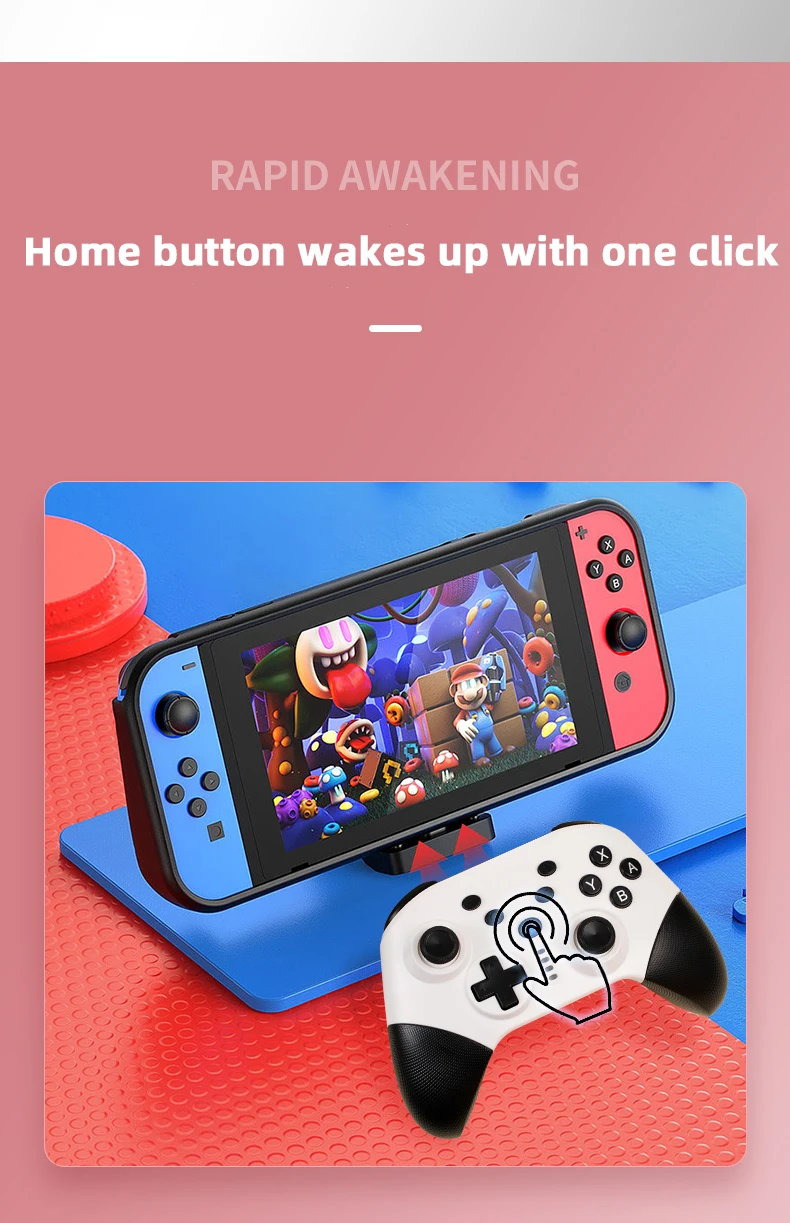
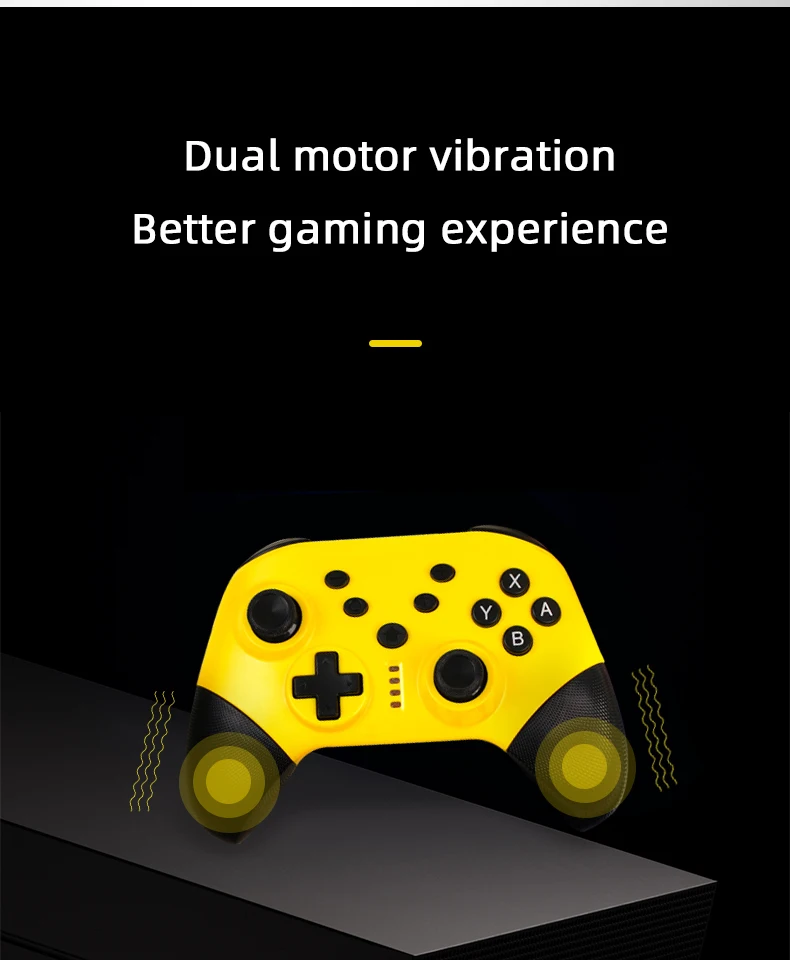
*Dual motor dual vibration, can wake up the Switch host with one click
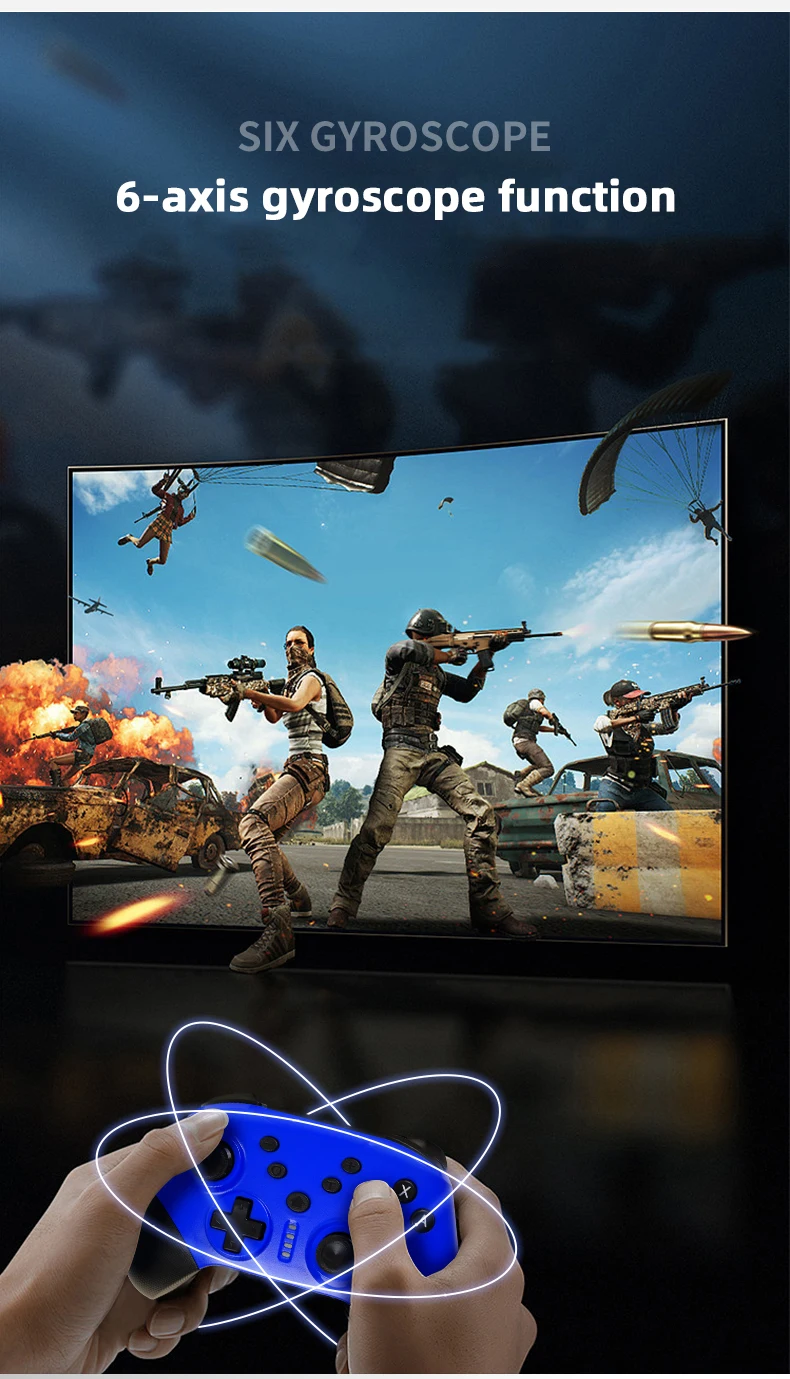
*With 6-axis gyroscope
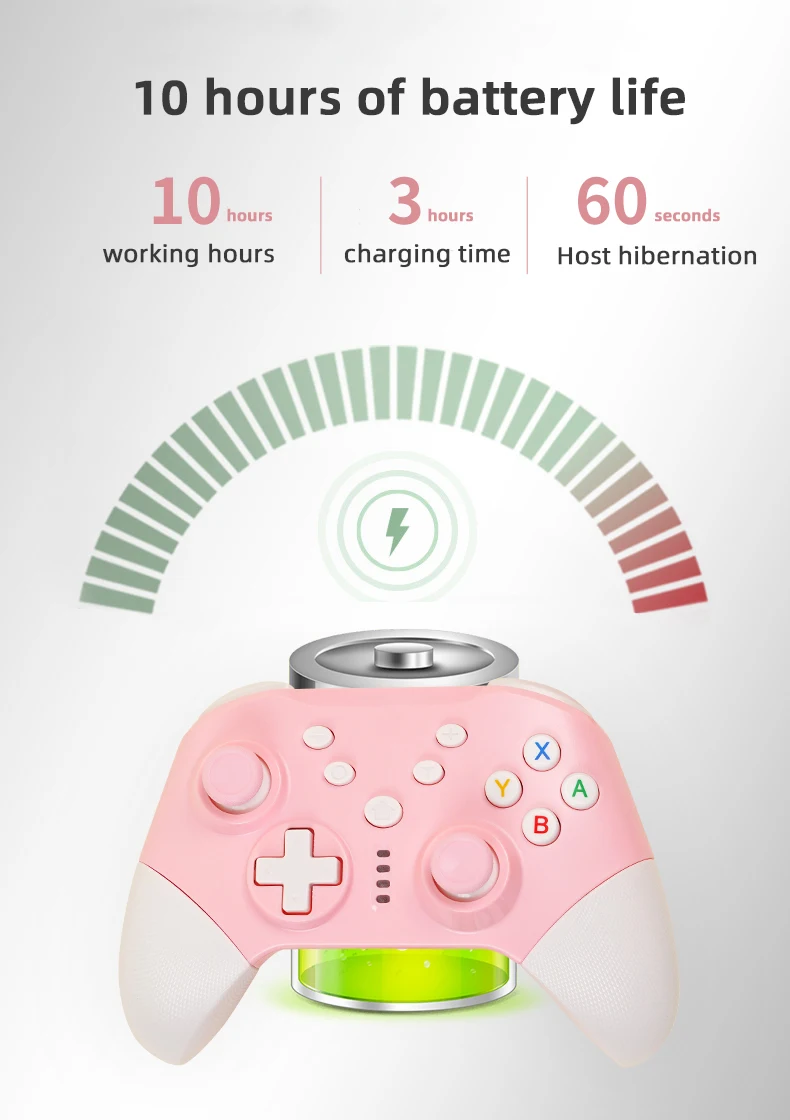
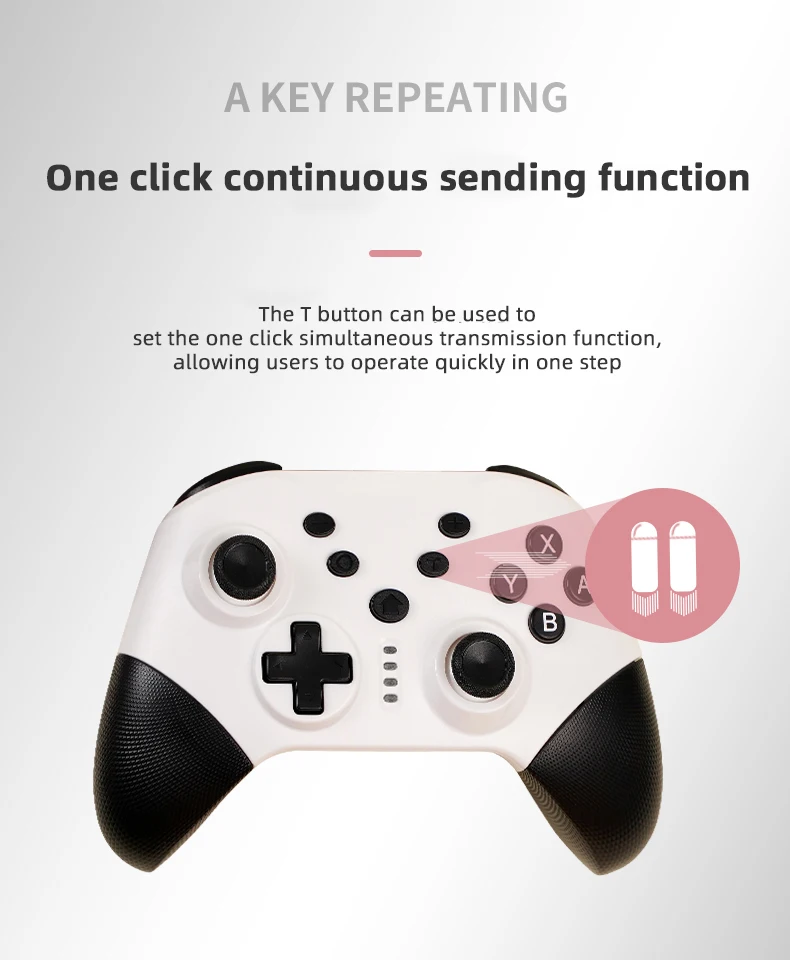
*Can be sent continuously with one click, with an ultra long battery life of 10 hours
*Suitable for multiple platforms, NS host/PC computer/PS3 host
Connection Instructions
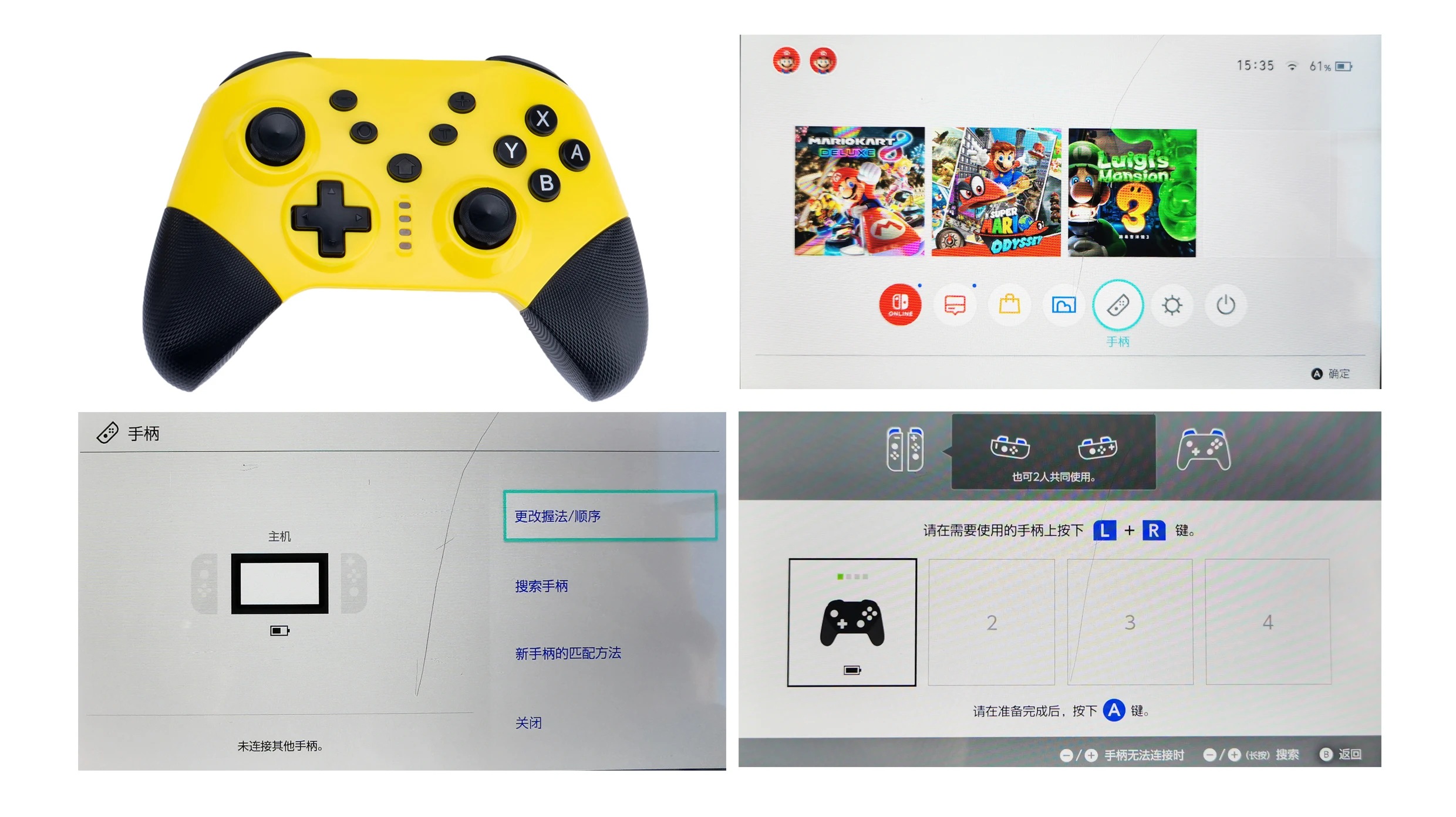
1. Switch host wireless connection
First time connecting the handle to the host:
Turn on the Switch host, and on the main menu interface of the homepage, click "Handle" - "Change grip/order" - long press and hold the handle homepage button for 2-3 seconds. The LED light changes from slow to fast, and the handle is successfully connected to the NS host. The LED remains on.
B wake-up handle connected back to the host:
When the NS host is in sleep mode, briefly press the home button to connect back to the host and the host wakes up.
2. PS3 host connection
Directly connect to the PS3 host using a USB data cable, with USB automatic recognition
3. PC wired connection:
Insert the default xinput into the PC, press and hold the camera button for 2 seconds to switch mode to Dinput
4. PC wireless connection (requires an external 2.4G receiver)
Turn on the PC host, plug in a 2.4G receiver, and press the "Y"+home button together while the handle is turned off. The first light will flash quickly for 2-3 seconds and automatically connect to the indicator light
5. Android mode connection
Y+home enters Android mode for pairing, pairing connection
6. IOS mode connection
A+home enters IOS mode for pairing, pairing connection